Bulk Certificate Generator: Spreadsheet and API Workflows
- 31 Aug, 2026

A spreadsheet full of names is already waiting, the design is approved, and somebody still has to get 230 certificates out the door without shipping one wrong title or one broken date. That is the moment a bulk certificate generator either saves the day or creates a support queue, and the difference usually comes down to whether the workflow treats validation as the key gate instead of an afterthought.
For course creators, event organizers, and HR or L&D teams, the job is rarely “design a certificate.” The job is to turn a roster into a clean, printable, traceable batch, then make sure the batch can be retried without duplicating anything or charging for a batch that never rendered. The good tools handle that as a machine workflow, not a manual design task, and that shift is exactly why certificate automation moved from niche admin work into a large-scale internet utility after Let’s Encrypt standardized ACME and the ecosystem grew around automated issuance at internet scale ACME’s standardization history and issuance scale.
Table of Contents
- When the Spreadsheet Is the Source of Truth
- Binding the Template and Catching Bad Rows Early
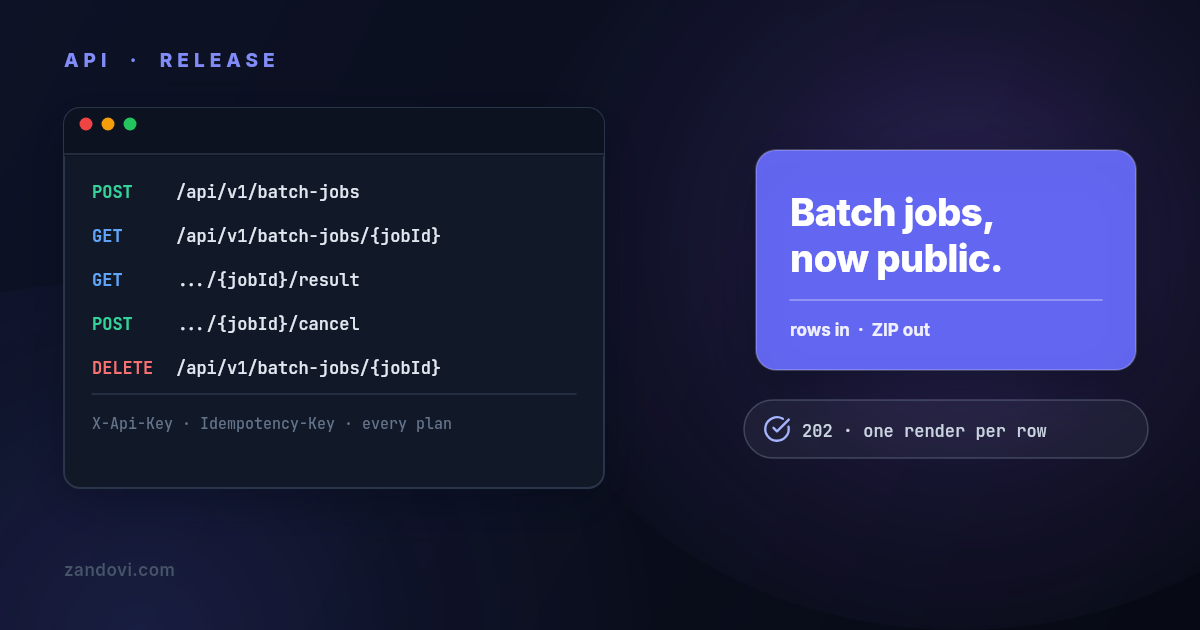
- Running the Same Job Through the API
- Plan Limits, DPI, and How to Split a Cohort
- Common Failures and the Fix That Actually Works
- Pre-Flight Checklist Before You Hit Generate
When the Spreadsheet Is the Source of Truth
A spreadsheet-first workflow is the right starting point when the people running the batch are not developers. They already have the data, usually in a CSV or Excel file, and they need the certificate system to respect that file as the source of truth instead of asking them to rebuild the roster elsewhere. The practical path is simple, import the sheet, map the columns, preview a sample, and generate one certificate per row, which is the common spreadsheet-driven model used in bulk certificate generation spreadsheet upload and row-based generation.
Bind only what changes per recipient
A certificate template usually binds five fields, recipient_name, course_name, completion_date, signer_name, and certificate_id. In real batches, only recipient_name and certificate_id usually change per row, so the other three should live as template defaults and stay out of the CSV entirely. That split keeps the sheet clean and stops teams from turning every design element into a data column.
A clean template keeps the static parts static. The course title, signer block, date style, and any certificate prefix belong in the design, not the upload file. If the CSV starts carrying fields that never change, the file gets harder to audit, and the chances of a mismatch rise every time someone adds a new cohort.
Practical rule: if a value looks identical across the whole cohort, it belongs in the template, not the spreadsheet.
That model also fits the way bulk certificate workflows are described in production guides, where the template is prepared once and the recipient data is mapped later through a spreadsheet import bulk certificate workflow overview. For a non-developer team, that separation is the whole point. The spreadsheet carries the variable names and IDs, the template carries the brand and layout, and the generator connects the two without manual retyping.
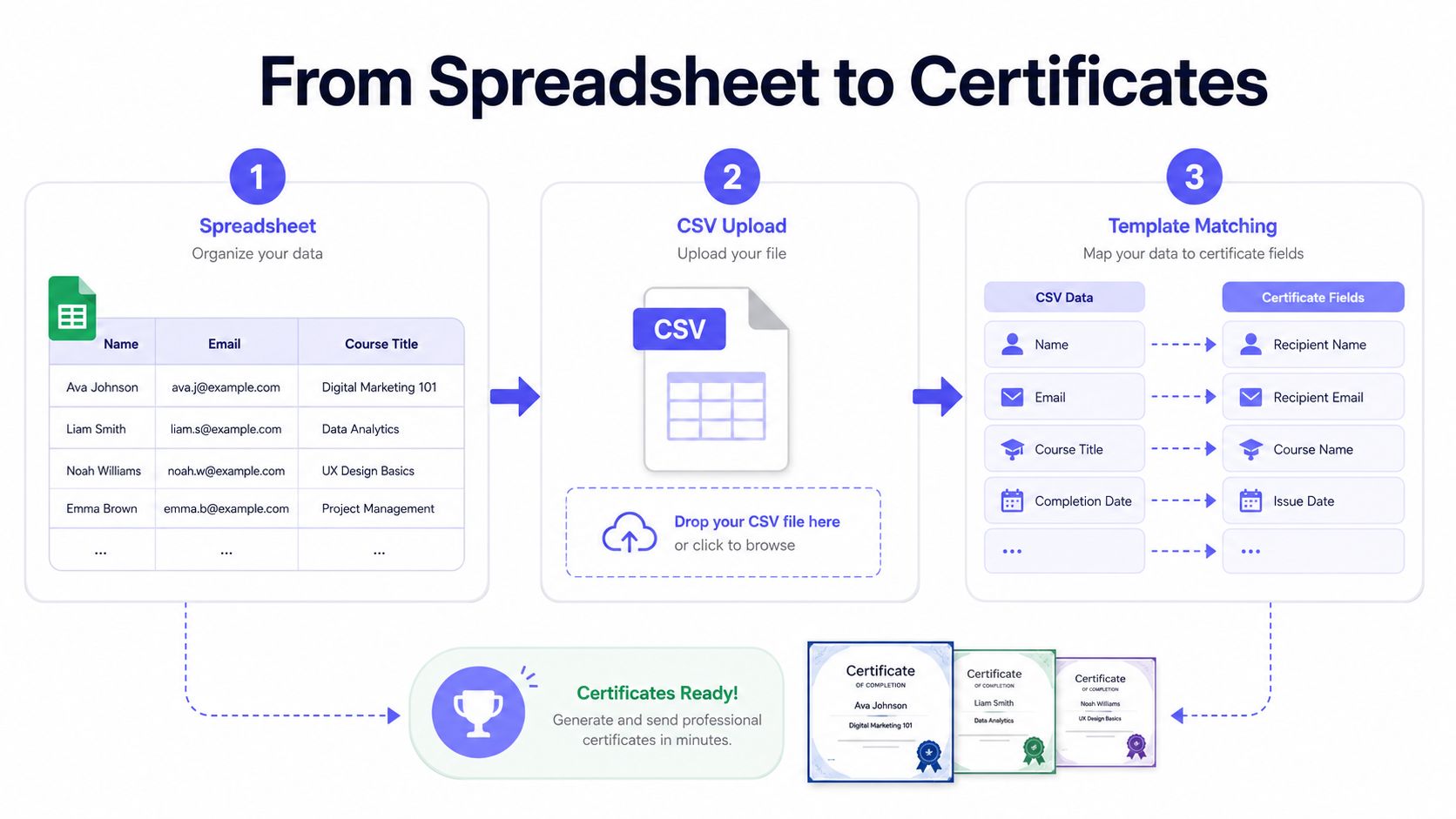
The fastest way to lose time is to treat the CSV like a dumping ground for everything on the certificate. Keep the file focused, keep the template stable, and the rest of the batch becomes much easier to validate.
Binding the Template and Catching Bad Rows Early
The binding step looks straightforward on the surface. On the canvas, recipient_name should sit in the largest text box, course_name should sit beneath it, completion_date belongs in a fixed corner, signer_name usually belongs on the signature area or seal, and certificate_id should auto-suffix per row so every output stays unique. A polished layout matters, but the core work happens before render, not after.
Validation is the actual product
The differentiator in a serious bulk certificate generator is validation. Headers have to match the variable names the template expects, every row needs to be checked for missing required values and for values outside an allowed list, and the summary should name the exact row and column where the problem lives. That is very different from a generic “batch failed” banner, which forces people to hunt through a hundred rows manually.
A good validation pass also separates failures. A malformed email in one row and a course name outside the allowed list in another row should show up as two distinct issues, because the fix is different in each case. That detail matters in real operations, especially for teams issuing certificates from spreadsheets where the same cohort often contains multiple kinds of human error.
A row rejected at validation should never reach render, and it should never bill.
That billing rule is part of the operational promise, because a batch rejected during validation is not the same thing as a batch that rendered and then failed later. The earlier the error is found, the cheaper it is to fix, and the less likely the team is to reissue something it didn’t intend to send. That is also why previewing a few rows is helpful, but not enough on its own.
The public certificate template view at Zandovi’s certificate templates shows the kind of reusable layout this workflow depends on. The template is where the visual discipline lives, and validation is where the data discipline lives. If either side is weak, a batch with one bad row can derail the whole job.

The habit that saves the most time is running validation before anyone clicks the final submit button. That’s where broken headers, missing required values, and disallowed list entries get caught while the batch is still cheap to fix.
Running the Same Job Through the API
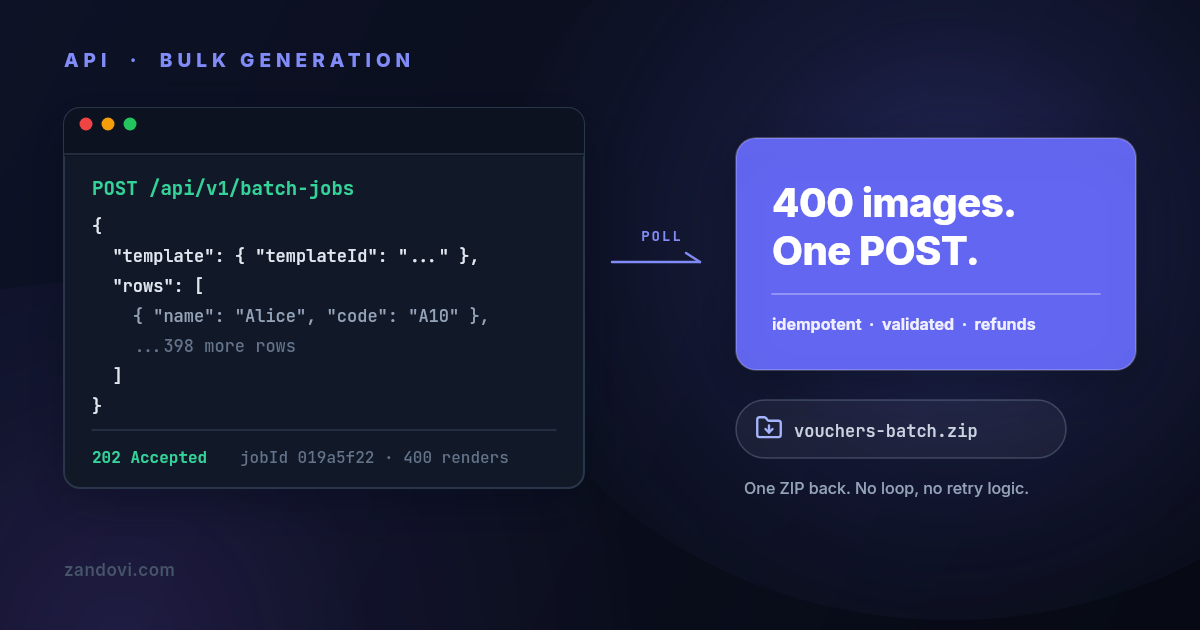
The API path uses the same engine as the spreadsheet flow, just with a developer-controlled payload instead of a CSV upload. It starts with schema introspection, which confirms the template’s variable names and types before the client sends any rows. That prevents a silent mismatch between what the template expects and what the calling system thinks it can send.
Send rows, but keep the job idempotent
A batch POST should carry an Idempotency-Key so a retry returns the original job instead of issuing duplicate certificates. That matters when the network drops mid-response or a queue consumer retries the same request after a timeout. The key point is simple, the client generates a stable UUID-like token, and the API uses it to make the second attempt behave like the first.
Delivery mode is the other decision. One path returns raw PDF or PNG bytes, which is the better fit when the downstream system stores assets itself. The other path returns a hosted link, which is easier when the caller just needs a URL to embed or pass along. The trade-off is retention, because hosted links expire on a schedule, so any workflow that emails later has to download immediately or choose a retention window that outlasts the send window.
| API delivery modes compared | Best for | Expiry behavior | Storage cost |
|---|---|---|---|
| Raw PDF or PNG bytes | Systems that store their own files | No hosted link to expire | Storage handled by the caller |
| Hosted link | Apps that need a URL to embed or forward | Link expires on a schedule | Lower local storage burden, but the caller must manage timing |
The API is not a separate product, it is the same rendering engine with a different front door. That matters for teams wiring it into n8n, Make, Zapier-style HTTP request nodes, or custom backends, because the integration pattern is usually a plain request node rather than a native app or node. For teams comparing batch-generation options, the product itself also documents schema discovery, batch jobs, and row-level validation in its API and batch docs batch CSV workflow and API contract.
The market context helps explain why this matters. One estimate placed digital certificate issuance software at USD 2.5 billion in 2024 and projected USD 8.7 billion by 2033 at a 16.2% CAGR, while another estimated the certificate authority market at USD 173.1 million in 2023 with a projection of USD 401.4 million by 2030 digital certificate issuance software market outlook. Those figures point to the same operational reality, certificate infrastructure now has to behave like software, not like a one-off design export.
Plan Limits, DPI, and How to Split a Cohort
Batch size drives planning more than many teams expect. A 230-person cohort does not always ship in one run, because the row cap depends on the plan and the workflow has to stay inside that limit. The practical split is clean when the plan allows fewer rows than the cohort size, and the proof is easy to check against the published tiers.
Put the split on paper before uploading
For Zandovi’s published plans, Personal allows 100 rows per job, Studio allows 200, Team allows 300, and Business allows 400 pricing and plan limits. That means a 230-person cohort becomes three jobs on Personal and one job on Team, assuming the team wants to stay within a single run where possible. Free sits at 25 rows per job, which is fine for a pilot or a small workshop, but not for a large graduation batch.
| Plan | Rows per batch | Recommended DPI | 230-person split |
|---|---|---|---|
| Free | 25 | 300 DPI for print, if needed | 10 jobs plus 5 rows |
| Personal | 100 | 300 DPI for print | 100 + 100 + 30 |
| Studio | 200 | 300 DPI for print | 200 + 30 |
| Team | 300 | 300 DPI for print | 230 in one job |
| Business | 400 | 300 DPI for print | 230 in one job |
DPI belongs on the canvas before the layout gets finalized. For print-oriented certificates, 300 DPI is the right production setting, because certificate artwork and names need to stay sharp when exported to PDF or physical stock print preparation guidance. Higher resolution does increase file size and can slow delivery, so the sensible move is to apply that setting to the layer carrying variable text and not treat every element as if it needs the same treatment.
The practical decision rule is easy. If the certificates will be printed, set the canvas for print first. If they are staying screen-only, the design can be lighter, but the team still needs to confirm the output is readable on the recipient’s device before running the full roster.
Common Failures and the Fix That Actually Works
Most failed certificate batches break in the same places, and the fixes are usually boring. That’s good news, because boring fixes are repeatable and cheaper than re-rendering the same batch twice. The recurring pattern is not a mysterious renderer bug, it is usually bad CSV hygiene or a link timing problem.
Five failure modes, one-line fixes
- Header mismatch. If the sheet says
first_namebut the template expectsfirstName, the field can come through empty. Rename the column or add an alias before uploading again. - Blank rows. Trailing commas can create empty rows that still count toward
the job size. Strip them with
awk 'NF>0'or use the importer’s skip-blank toggle. - Duplicate records. Repeated rows collide on idempotency and can cause one certificate per duplicate to be skipped. Dedupe by the joining column, usually email, before submission.
- UTF-8 BOM issues. Excel exports can break header parsing if the file carries a BOM. Export as CSV UTF-8 and strip the BOM before re-uploading.
- Hosted link expiry. If the workflow uses a link, download it or mirror the ZIP into your own storage before the retention window ends.
Those fixes sound basic because they are basic. The trouble is that guides often stop at upload, mapping, and generate, while failures happen around malformed CSVs, row counts, and expiration timing. That gap is why operational teams need a support path that talks about row-level failures instead of pretending every batch fails for the same reason support and batch troubleshooting.
A batch also gets harder to trust when the team can’t trace the exact row that failed. The better workflow keeps per-row error output so a rejected record can be fixed and retried without reissuing the good ones. That is the difference between a clean rerun and a mess of duplicate PDFs.
Pre-Flight Checklist Before You Hit Generate
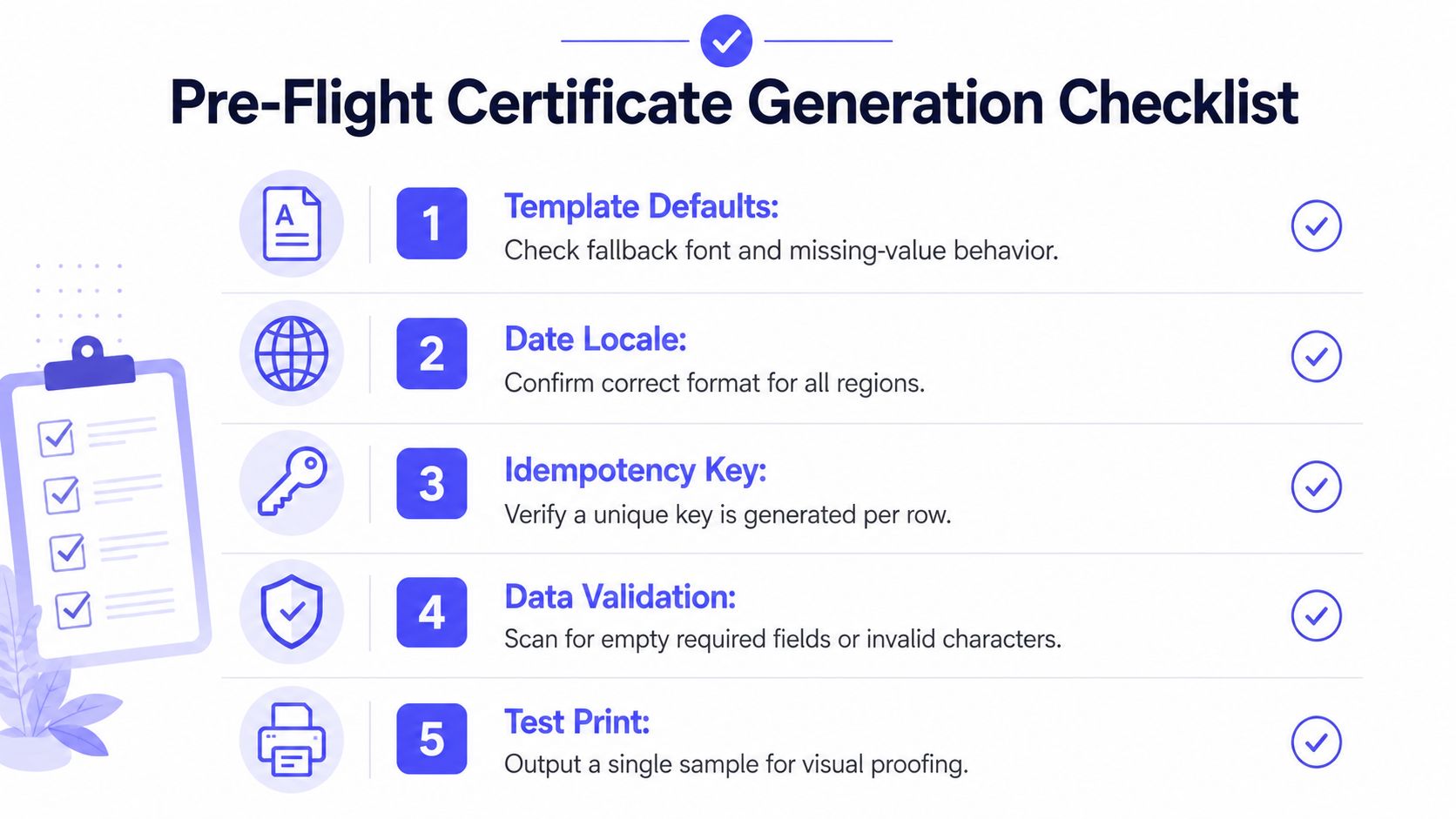
A production run should be dull. The template should already know its fallback font, missing-value behavior, and date locale, the data should already be clean, and the delivery path should already be clear about where files land. If any of those pieces are still undecided, the first real batch is doing design work that should have happened earlier.
Five checks before the full cohort
- Template defaults. Confirm the fallback font and what happens when a value is missing.
- Date locale. Lock the date format before recipients from different regions see inconsistent output.
- Idempotency key. Generate one per row so a retry doesn’t double-issue the same certificate.
- Data validation. Scan for empty required fields and invalid characters before the POST goes out.
- Test print. Output a single sample and inspect it on paper or in a PDF viewer before the full run.
A callback path matters too. Delivery jobs should retry with exponential backoff, and anything that still fails after repeated attempts needs a dead-letter queue so it does not vanish without a trace. Retention should match policy rather than habit, because ephemeral cohorts and compliance-bound records do not need the same timing rules.
Open one sample PDF on a phone and a desktop, then check the hosted link in an incognito window before the full batch goes live.
That single test catches more than layout problems. It confirms that the file opens where recipients live, the link works outside the sender’s logged-in session, and the billing record matches the rows that delivered. The best-run certificate batch is the one that feels uneventful because all the risky parts were already checked.
A spreadsheet batch should never be a leap of faith. Upload a five-row pilot, verify the template defaults, run validation, confirm the delivery path, and only then send the cohort that matters.