Showing Posts From
Guides
- 20 Aug, 2026
Canva Bulk Create: The Limits, and What to Do When You Hit Them
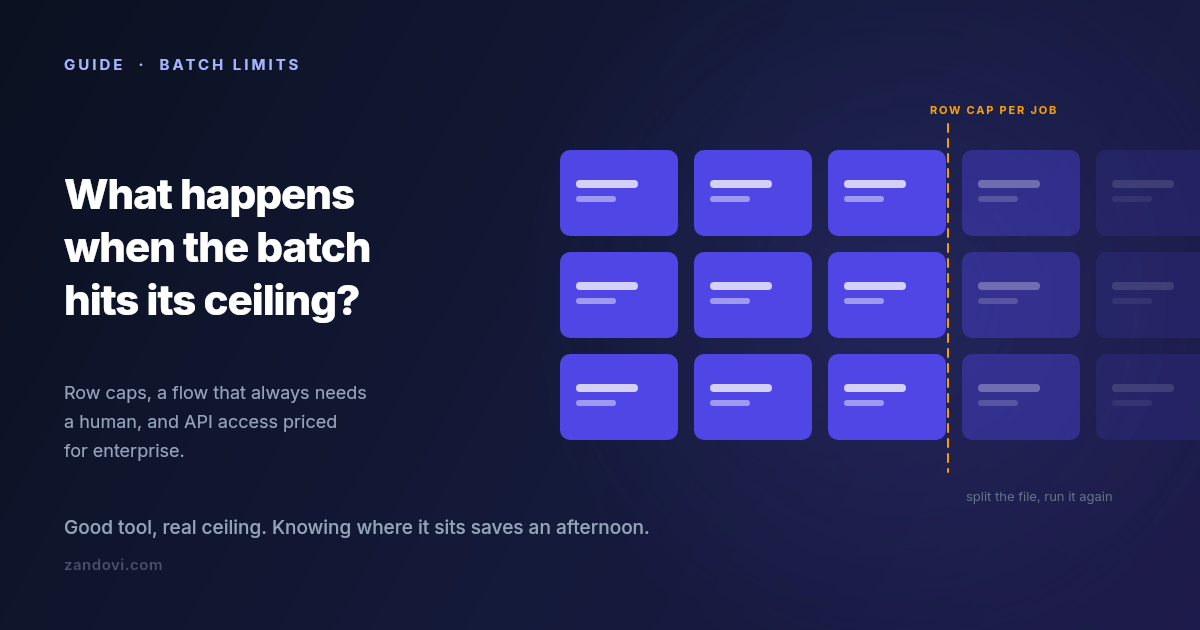
We make a tool that competes with part of what Canva does, so weigh this accordingly. It's also true that most people reading this should probably stay where they are, and this post says where that line is. Canva's Bulk Create is a good feature. You build a design, connect a spreadsheet, map columns to text and image placeholders, and get a personalized copy per row. For name badges, social variants and simple certificates, it is often the fastest path from data to output, and if it's working for you there's no reason to change anything. But there's a specific set of walls people hit, and hitting one tends to send you searching. Here's what they are. Wall 1: rows per batch Bulk Create caps how many rows you can process in one go. Canva's help center documents the current figure, which has been in the low hundreds, and the cap applies per batch, so a larger dataset means splitting the file and repeating the process. The documented cap is usually not the real limit anyway. Each row becomes a page in a single Canva document, so a few hundred rows produces a few hundred pages in one file, and the editor gets progressively heavier to work with. In practice most people find their comfortable batch size well below the technical maximum. Not because it stops working, but because reviewing and exporting a 300-page document is its own chore. If you're generating a few hundred items a few times a year, splitting the file is genuinely fine. If it's a recurring weekly job, the splitting is the problem. Wall 2: it's a human-in-the-editor flow This is the bigger one, and it's structural rather than a number you can raise. Bulk Create is something a person does: open the design, connect the data, map the fields, generate, review, export. There is no version of it that fires when a form is submitted, when an order completes, or when a row lands in a database. Someone has to be at the keyboard. That's fine for campaign work. You sit down, you make the batch, you're done. It doesn't work at all for anything continuous. If your certificates should be issued the moment a learner finishes a course, or the voucher should be in the welcome email that goes out ninety seconds after signup, no amount of batch processing gets you there. You need something a server can call. Wall 3: programmatic access is gated high Canva does have a developer platform. The Connect APIs include autofill endpoints that populate a brand template from data programmatically, which is exactly the capability the previous section is asking for. The catch is the plan requirement. Per Canva's own documentation, using the Autofill APIs in production requires the integration to act on behalf of a user in a Canva Enterprise organization; users on other paid plans get limited access while an integration is under development. If you're a solo operator or a small team on Pro or Teams, that path isn't open to you at the price you're currently paying. So the honest summary is that automated generation exists in the Canva ecosystem, and it's priced for organizations rather than for the person with a spreadsheet and a deadline. Wall 4: the details that surface at scale Smaller than the first three, but they're what people actually complain about once volume goes up. No per-field validation before generating. Bulk Create maps whatever is in the cell. If row 88 has a malformed date or a code in the wrong format, you find out by looking at page 88. At twenty rows you'd notice. At three hundred you won't, and the error reaches whoever receives it. Unique codes per row need care. A single QR code on a design is easy. A different QR code per row, one encoding each recipient's own redemption or verification URL, is a different requirement, and it's worth testing on three rows before you commit a whole campaign to it. Print output. Canva exports print-quality PDFs, but if your requirement is a specific DPI, exact physical dimensions, and predictable behaviour when a print shop opens the file, this is worth verifying carefully rather than assuming. Long values break layouts. A name twice as long as your test data will overflow or wrap unless the text element is set up to handle it. This bites everyone, in every tool, and it's the single most common cause of a batch that has to be regenerated. Option A: stay, and split Worth saying plainly: if you generate a few hundred items a handful of times a year, splitting the spreadsheet costs you fifteen minutes per campaign. That is cheaper than migrating, cheaper than learning a new tool, and cheaper than adding a subscription. Canva's design capabilities and asset library are genuinely excellent, and none of the walls above are about design quality. Split by something meaningful, like cohort or date or region, rather than by arbitrary row ranges, and the resulting files stay organized on their own. Option B: write a script If you're comfortable with code, generating personalized images from a CSV is a solid afternoon of Python or Node. You get complete control and no subscription. You also get to own it. Font rendering, the PDF library's quirks, and the layout code all become yours to maintain, and the person who needs the design changed next quarter has to ask you rather than doing it themselves. That trade is worth it for some teams and clearly not for others. Option C: a tool built for the batch case The third option is a design editor whose batch and API paths aren't an afterthought. This is what we built Zandovi to be, and here's the concrete comparison rather than a pitch. Batch from a spreadsheet. Design once, download a CSV whose headers already match your template's variable names, fill it, upload it. Rows are validated against the template's rules before anything renders, so mismatched columns, missing required values, values outside a variable's allowed list and QR data that won't encode all get caught up front — along with an advisory flag on any column whose values run far longer than the design allows for. You fix them in the sheet and re-upload. Then you get a ZIP with one file per row, rather than a many-page document to export. Row caps per job are 25 on the free plan, 100 on Personal, 200 on Studio, 300 on Team and 400 on Business. So this is not an unlimited-rows story either, and large datasets still get split. What changes is the validation and the output shape. The same design, callable. The template you built for the batch flow is also an API endpoint: POST the variable values, get PNG, JPEG, WebP or PDF bytes back. Every paid plan includes full API access, with no enterprise tier standing between you and automating it. That's the wall-2 and wall-3 answer in one. Unique codes per row are the normal case. QR and barcode elements bind to variables like any text field, so each row can carry its own redemption link or verification URL without a workaround. Print output is explicit. DPI is a setting (96, 150 or 300), PDF costs the same as a PNG with no format multiplier, and the canvas can be set up in millimetres or inches from the start.Where Canva is still the better answer Being fair about this matters more than winning the comparison. Design breadth is the obvious one. The stock library, the font selection, the sheer number of starting points: that's Canva's moat, and it's a real one. So is familiarity. If four people need to edit the design and all four already use Canva, that's worth more than any feature comparison. Occasional, low-volume batches don't justify adding a tool either. A few hundred items twice a year is not a problem worth solving with a second subscription. And if you're already on Teams or Enterprise, the API question is settled and brand controls come with it. The case for moving is narrower than a vendor blog usually admits: you're generating regularly, the volume makes the manual flow tedious, you need validation or unique codes per row, or you need a server to trigger it and don't have Enterprise. Moving one design, if you do Don't migrate everything. Pick the single design causing the most repetitive work and rebuild just that one:Rebuild the layout on a canvas of the same dimensions. An hour, usually less. Mark the changing elements as variables, setting which are required and which have a fixed list of allowed values. This is the step with no Canva equivalent, and it's what stops bad rows from becoming bad output. Download the generated CSV template and paste your existing data under the headers. Run a batch of five rows first. Check the longest name, the shortest name, and anything with an accent or a non-Latin character. Then run the real batch.The free plan includes 100 renders a month with no card, which is enough to rebuild one design and test it properly before deciding anything.References: Canva Bulk Create help, Canva Connect Autofill API docs. Both were checked in July 2026. Canva's limits and plan requirements change, so confirm the current figures on their pages before making a decision.
- 12 Aug, 2026
What a Rendered Image Actually Costs: Image Generation API Pricing in 2026
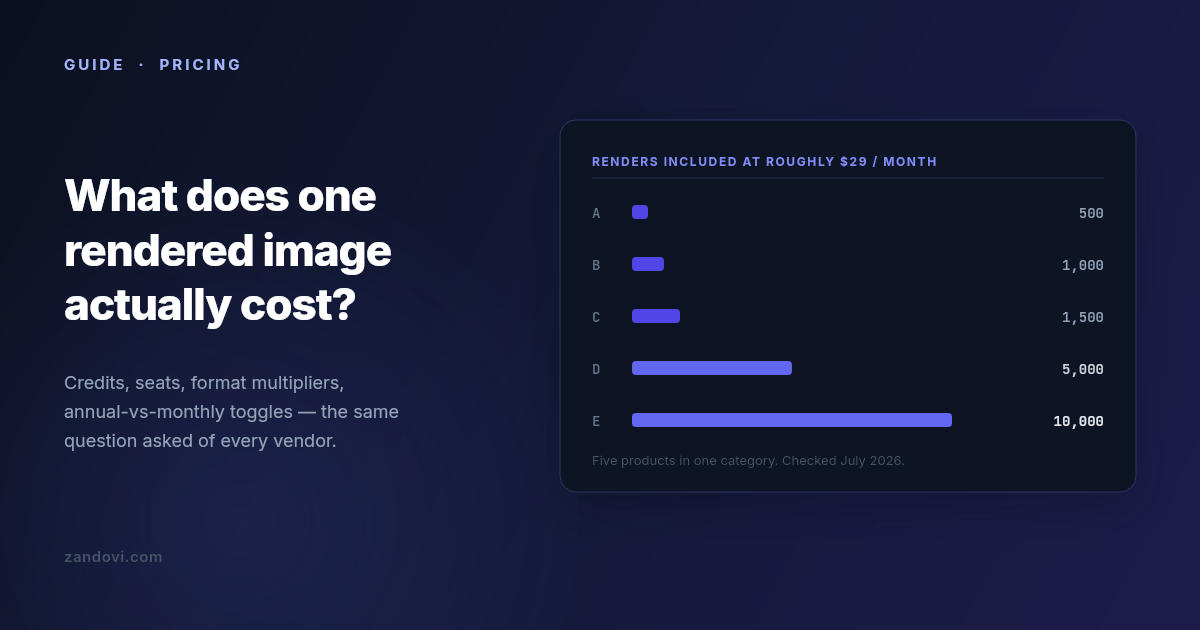
We build one of the products in this category, so read this with that in mind. What follows is the comparison we had to do for ourselves, written down. Every number is from the vendor's own public pricing page, checked in July 2026, and linked so you can verify it. Linked also so you can catch it when it goes stale, because these pages change every few months. Why these pricing pages are hard to compare Five things make a straight comparison awkward, and only some of them are accidental. Credits are not renders. Some vendors charge one credit per image and some charge multiples for certain outputs. A PDF might cost two credits per page. A video costs by duration. If your workload is mostly PDFs, a plan advertising 5,000 credits might deliver 2,500 documents. Annual prices are shown as if they were monthly. The large number on the page is often the annual-billing rate divided by twelve. Paying month to month costs meaningfully more, commonly 15-25%. Check which toggle is selected before you write the number down. Some vendors meter per seat. A plan at $45 per seat with 450 credits per seat looks cheap next to a $149 flat plan until you have four people, at which point it isn't. Free tiers range from generous to decorative. "Free" sometimes means a recurring monthly allowance and sometimes means a one-time bundle of trial credits that never refills. Those are very different things when you're evaluating. What counts as a render varies. On most platforms, exporting an image by hand from the web editor consumes the same credit an API call would. On a few, it doesn't. If your team does a lot of manual design work alongside the automated pipeline, this is the difference that dominates the bill. The number to compare Ignore the plan names. Compute cost per 1,000 renders at the tier you'd actually be on. Not the cheapest tier, and not the enterprise one, but the one that covers your realistic monthly volume with maybe 30% headroom. Then check whether your specific output type carries a multiplier. Entry tiers, July 2026 Prices as listed on each vendor's public pricing page in July 2026. Where a vendor shows annual pricing by default, the monthly rate is noted.Product Entry plan Renders included ≈ Cost / 1,000 Free tierPlacid $19/mo 500 credits ~$38 Trial creditsBannerbear $49/mo 1,000 credits ~$49 30-credit trialTemplated $29/mo 1,000 credits ~$29 One-time 50 creditsAPITemplate.io $29/mo billed annually ($35 monthly) 1,500 renders ~$19-23 50/moZandovi $29/mo 5,000 renders ~$5.80 100/moAnd the higher tiers, where the per-render economics usually improve:Product Mid tier Renders ≈ Cost / 1,000Placid $39/mo 2,500 ~$16APITemplate.io $69/mo 9,000 ~$7.70Bannerbear $149/mo 10,000 ~$15Zandovi $79/mo 25,000 ~$3.20The part most comparisons leave out If you stop reading at the table above, you'll conclude that the established vendors are expensive and everything else is cheap. That's not quite the shape of the market in 2026, because there's a whole second group of products that compete purely on render economics. As of July 2026, that group includes Imejis (around $24.99 for 10,000 renders, with 100 free per month), Bannerify ($29 for 10,000, also with a recurring free tier), RenderForm (from about $9 for 250, with credit rollover), HTML/CSS to Image (around $14 for 1,000) and Switchboard (around $19 for 1,000). Look at those numbers next to the table and the honest conclusion is that on price per render alone, the budget group wins, and nobody in the established group beats them. That includes us. Bannerify sells 10,000 renders for the same $29 that buys 5,000 from Zandovi. We're saying this out loud because it's the thing you'd find in twenty minutes anyway, and because it points at the actual question. If cost per render were the only variable, this would be a one-line market and the cheapest vendor would have all of it. It isn't, so the useful question is what you give up at each price. What you're actually buying at each price point The budget group is typically API-first. You give it HTML/CSS or a simple template definition and it gives you an image, fast and cheap. What's usually thin or absent: a real visual editor a non-engineer can use, batch processing from a spreadsheet, print-ready output at a controlled DPI, team accounts with roles, and template management beyond a list. If your rendering need is well-defined, high-volume, and owned entirely by engineers, this group is very hard to argue against. The established group charges more per render and sells operational maturity: years of uptime history, mature integration ecosystems, video and GIF generation in Bannerbear's case, support you can escalate to. If you're integrating rendering into a product your customers depend on, that history is worth paying for and the per-render delta is probably noise in your budget. Seat-metered products like Abyssale price around teams rather than volume. If your usage is five designers each making a moderate number of assets, that model can work out cheaper than volume pricing. If it's one server making 100,000 calls, it won't. Five questions that change the answer more than the headline price Does your output type carry a multiplier? If you generate PDFs, ask specifically. One credit per page versus two per page doubles your bill and appears nowhere in the headline number. What happens at the limit? Most of this category hard-stops when you exhaust your quota, and requests start failing until the reset. A few sell overage credits instead. Neither is wrong, but they fail differently. A hard stop means a broken feature and an upgrade decision at 2am, while overage means a surprise on the invoice. Know which one you've bought. Do editor exports count? If your team designs in the web editor and exports by hand, check whether those exports draw from the same pool as your API calls. On most platforms they do. Is the free tier recurring? A monthly allowance lets you build, test in CI, and run a small side project indefinitely. A one-time trial bundle lets you evaluate for an afternoon. Both are legitimate; only one is useful to develop against. How many templates can you have? Template caps exist on some entry plans and are a recurring complaint in reviews of this category. If you're generating across a dozen designs, a three-template cap ends the evaluation regardless of render price. A rough decision guide If you need images inside a product, at volume, and engineers own the whole pipeline, start with the budget group. The economics are genuinely better and the missing features are ones you may not need. If you need a track record, integrations that already exist, or video, Bannerbear and Placid are the incumbents for a reason. Pay the premium and stop thinking about it. If non-engineers need to own the designs, you need a real editor, and the field narrows sharply. Most cheap renderers are code-first by design. And if your workload is bursty and human-driven, a few hundred certificates after an event or a set of vouchers per campaign rather than steady API traffic, look for spreadsheet batch processing and check what a manual export costs you. Where we fit, stated plainly Zandovi is $29/month for 5,000 renders, with 100 free per month on a recurring basis. Against the category leaders that's several times more renders per dollar. Against the budget flank it isn't the cheapest, and we're not going to pretend otherwise. What we're actually built around is the combination: a full visual canvas editor where any text, image, QR code or barcode can be a variable; spreadsheet batch generation that outputs a ZIP; print-ready PDF at 300 DPI with no format multiplier; and unlimited manual editor exports on every paid plan, because metering someone's design work by the click never made sense to us. If you need none of that, buy renders from whoever sells them cheapest. That's a real answer, and for a lot of workloads it's the right one. Verify before you commit Every number here has a date on it and a link next to it, and that's deliberate. This category re-prices constantly: over the twelve months to July 2026 at least three of the products named above restructured their plans. Before you sign up for anything, open the linked pricing page and confirm the number yourself, paying attention to the annual/monthly toggle. And build a small proof of concept on the free tier before you commit to a year. Cost per render is easy to compare on a spreadsheet and rarely the thing that decides whether a tool works for you.Sources: Bannerbear pricing, Placid pricing, APITemplate.io pricing, Templated pricing, Zandovi pricing. All figures checked July 2026.
- 14 Jul, 2026
Designing Gift Cards People Actually Redeem
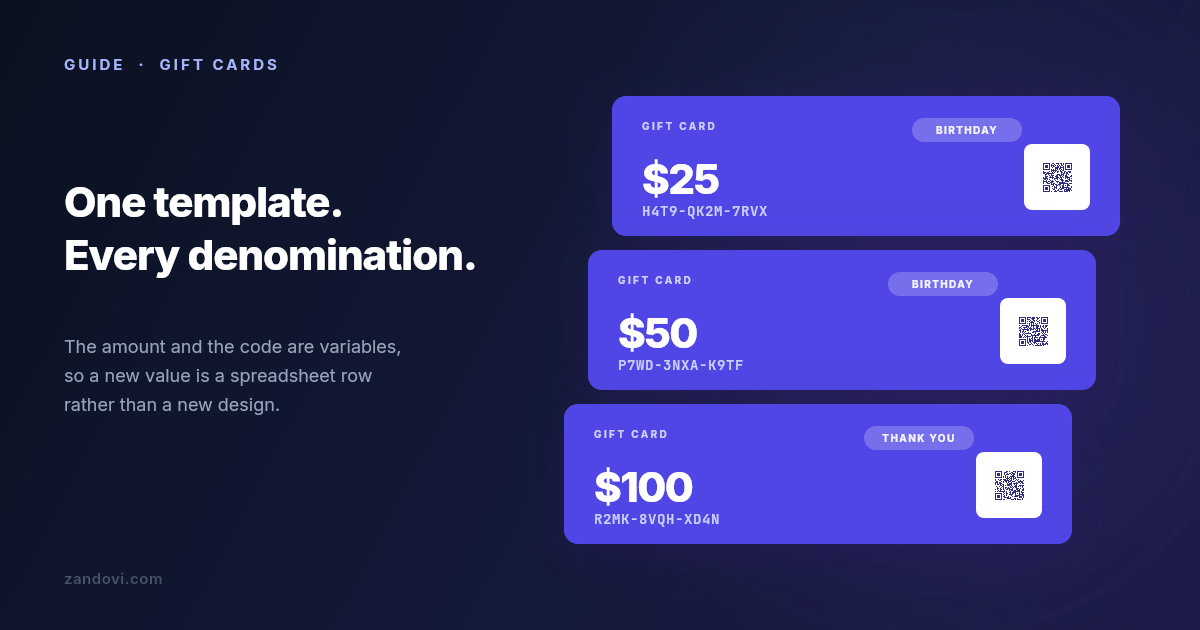
A gift card is an unusual product. Someone pays you today for something you owe later, to a person who didn't choose it. Every card that gets forgotten in a drawer looks like free revenue on this month's numbers and is really a promise sitting on your books, plus a customer who never came in. Breakage rates get quoted anywhere from a few percent to well into double digits, and the honest answer is that it depends entirely on the business. What isn't in doubt is the direction: the easier a card is to understand and use, the more of them come back through the door. A lot of that is design. So this covers what makes a card get redeemed, and then the mechanical part most guides skip: producing a whole set of denominations and codes without laying out each one by hand. Make the value unmissable The amount is the most important element on the card, and it should look like it. Give it more size and weight than anything else, including your logo. The failure mode is a card designed to be tasteful, where the value ends up as small grey text in a corner. Someone pulls it out of an envelope, can't immediately see what it's worth, and puts it back. Hold the design at arm's length. If the number isn't the first thing you read, the hierarchy is wrong. Contrast matters as much as size. A pale gold $50 on a cream background photographs beautifully and is genuinely hard to read in a dim restaurant. Make the redemption path obvious Every question a recipient has to ask costs you redemptions. The card needs to answer four things without anyone thinking about it: what it's worth, where it can be used, how to use it, and whether it expires. That last one deserves care. Gift card expiry is regulated in many places, with minimum validity periods and rules about fees, and the rules differ by country and by state. Check what applies to you rather than copying what another card does. If there's no expiry, saying so plainly is a feature worth printing. Keep the how-to-use line short and specific. "Present this card in store or enter the code at checkout" beats a paragraph of terms. If you need terms, put them on the back in small type where they belong. Design the set, not the card Here's where most gift card projects go wrong. You design a beautiful $25 card, then you need $50, $100 and $250. Then December arrives and you need a festive version of all four. Then a corporate client wants fifty with their logo on them. Designing each one separately means every future change is four to sixteen edits, and they drift apart. One gets the new logo, another keeps the old typography, and after a year your cards don't look like a family. The fix is one master template where the parts that change are variables:Variable Element Notesamount text Format it in the sheet exactly as it should print: $50, not 50.card_code text Mark it required, so a blank cell is caught rather than printing a codeless card.expires_at text Dates print exactly as written, so settle the format in the spreadsheet.occasion text Set its Allowed values to the occasions you actually produce.redeem_qr QR code Encodes the redemption URL for that specific card.Now a new denomination is a row in a spreadsheet, and a rebrand is one edit to one template.Codes that survive being typed by a human If your cards carry a code, someone will read it off a physical card and type it into a phone. Design for that. Drop ambiguous characters from your alphabet. 0 and O, 1 and I and l, 5 and S, 8 and B all cause support tickets, and you lose nothing by excluding them. Group the code so the eye can track it: H4T9-QK2M-7RVX is meaningfully easier to transcribe than H4T9QK2M7RVX. Set the code in a monospace font. Proportional fonts make similar characters harder to distinguish at a glance, and monospace signals "this is a code you type" without a label saying so. Then mark card_code required, so a batch with a blank code fails at upload rather than at the print shop. Generate the codes in the spreadsheet and check the first and last rows after filling down — an off-by-one there is invisible until someone tries to redeem. The QR code beside it does the same job with less friction. Bind a QR element to a variable and each card carries its own redemption link, so a phone can skip the typing entirely. Keep it at least 100×100 px and use the Print Safe button to get the quiet zone right, because a QR crowded against a card edge is a QR that doesn't scan. Match the occasion without forking the design A birthday card and a corporate thank-you shouldn't feel the same, but they should feel like they came from the same business. Handle this with the occasion variable and a swappable image element rather than separate templates. The layout, typography and logo placement stay fixed. The photograph and one or two colours change. Stock imagery is searchable inside the editor across Unsplash, Pexels and Pixabay, so sourcing a seasonal image doesn't mean leaving the app. The discipline is keeping the structure identical across occasions. That's what makes a set of cards read as a range rather than as four unrelated designs. Produce the whole set at once With the template built, the set is a spreadsheet. Download the CSV template from the Batch tab so the headers already match your variable names: amount,card_code,expires_at,occasion,redeem_qr $25,H4T9-QK2M-7RVX,31 Dec 2027,Birthday,https://example.com/gc/H4T9QK2M7RVX $50,P7WD-3NXA-K9TF,31 Dec 2027,Birthday,https://example.com/gc/P7WD3NXAK9TF $100,R2MK-8VQH-XD4N,31 Dec 2027,Thank You,https://example.com/gc/R2MK8VQHXD4NUpload it and every row is validated before anything renders. A missing card code, an occasion outside the allowed values you set on that variable, a column whose name doesn't match the template: all flagged with the row named, so you fix the sheet rather than the output. Then submit and download a ZIP with one file per row. Row caps per job are 25 on Free, 100 on Personal, 200 on Studio, 300 on Team and 400 on Business, so a run of 500 corporate cards gets split across a few jobs. Split them by denomination or by client and each ZIP is something you can hand over as it is.Print and digital are different exports For physical cards, export PDF at 300 DPI. Set the canvas up in millimetres or inches from the start rather than converting later, and pick the DPI before you design, since the options are fixed at 96, 150 and 300. There's no bleed or crop-mark support, so if your design runs colour to the edge, ask your printer what bleed they need and add it by oversizing the canvas yourself, keeping the trim area clear of anything important. Worth knowing before you send the file rather than after. For emailed cards, PNG at 2× scale is the right output. Same template, different export, so the digital and physical versions can't drift apart. What this doesn't do Zandovi generates the card. It doesn't track balances, mark a code as spent, or tell you whether card H4T9-QK2M-7RVX has already been used. That lives in your POS or your ecommerce platform, and it's the part that turns a printed code into a working gift card. Worth being clear about, because a beautifully produced set of cards with no system behind the codes is a set of cards anyone can spend twice. When the spreadsheet stops fitting Batch generation suits how most businesses actually buy gift cards: a run before the holidays, a corporate order, a restock. It stops fitting when cards are sold online and expected instantly. If someone buys a digital gift card at 11pm and wants it in their inbox, you want the same template called from your backend: one POST carrying that card's amount and code, PNG or PDF bytes back, attached to the delivery email. Same template, same variables, nobody at a keyboard. What this costs A run of 100 cards is 100 renders. The free plan's 100 renders a month covers a first batch or a proper test. Personal at $29/month for 5,000 renders covers a seasonal programme comfortably, and manual exports from the editor don't count against it on any paid plan.There are eleven gift card templates in the gallery to start from, and the batch generation guide walks through the upload and validation step by step.