What's New in Zandovi: Design with Claude and ChatGPT, Version History, Every Language
- 22 Oct, 2026
We shipped two releases this week, on 21 and 22 October. The first is the biggest update since launch: about 120 changes covering the editor, the renderer and the API. The second is a short round of fixes on top of it. If you only read one paragraph, here it is:
- Zandovi now works inside Claude, ChatGPT and coding agents. Ask for a coupon in plain words and get a saved, editable template back.
- Every template keeps its last 10 versions, and you can restore any of them.
- Text renders correctly in any language: every national character in European languages (ä, ß, ą, ł, ç, œ, ř, ő, Greek, Cyrillic) plus Chinese, Japanese, Korean, Thai, Arabic, Hebrew, Hindi and Bengali.
- The editor has a new layout: project switching from the header, a project overview tab, and a link for every template.
- Images got easier to handle: choose how a photo fills its box, and save stock photos to My Images for later.
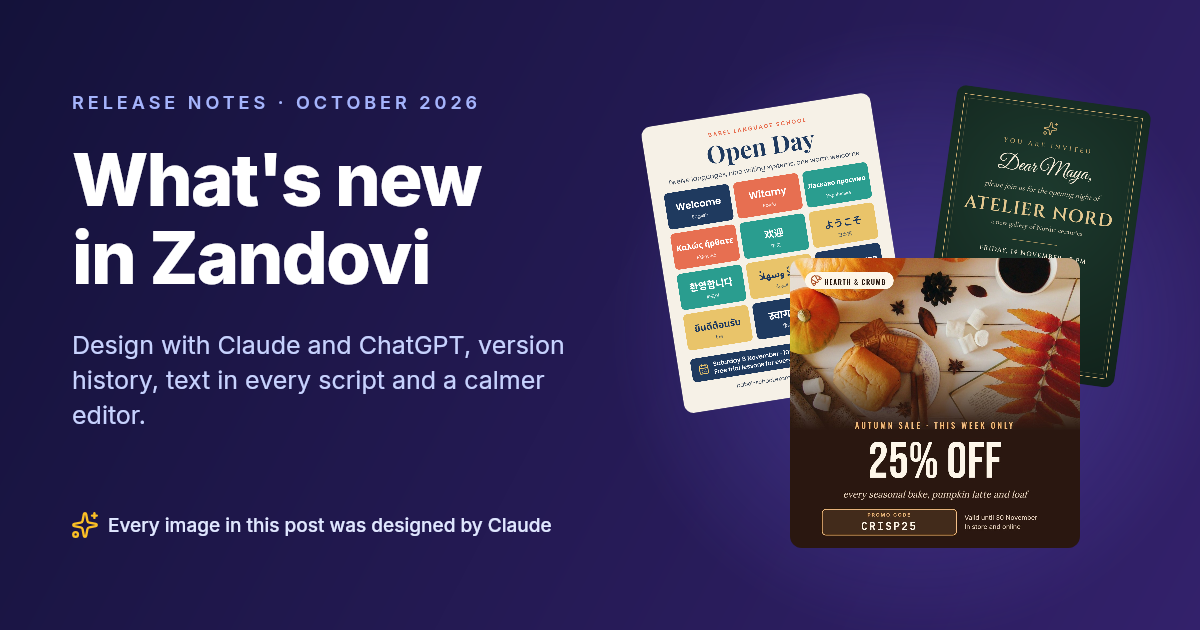
One more thing before the details. Every image in this post, including the cover, was designed by Claude through the new connector. We wrote a prompt, Claude built the template, checked its own preview and saved it. We downloaded the results. Nothing was touched up by hand.
Each image below comes with its prompt, so you can try the same thing yourself. Click Show the prompt under an image to see it.
Show the prompt for the cover image
Design the cover for our blog post “What’s new in Zandovi” (1200×630). Diagonal gradient from midnight navy #14123a to violet #33216b with a soft violet glow behind the right side. Left: “RELEASE NOTES · OCTOBER 2026” in small indigo caps, “What’s new / in Zandovi” in Inter 800 at 72 px, the line “Design with Claude and ChatGPT, version history, text in every script and a calmer editor.”, and at the bottom a sparkles icon with “Every image in this post was designed by Claude”. Right: the open day poster, the invitation and the coupon rendered above, as rounded cards with soft shadows, the poster tilted -9°, the invitation +8°, the coupon in front and upright. Use their share links as the image sources.
Then ask it to render the template with generate_image (PNG). This one
builds on three earlier images, so run it last, in the same conversation.
Design with Claude, ChatGPT and your coding agent
Zandovi is now an MCP server, which means AI assistants can use it directly. Connect it once and you can ask for things like:
- “Design an Instagram coupon for my bakery’s autumn sale, 25% off, code CRISP25.”
- “Render the welcome-card template for each name in this list.”
- “Change the headline on the summer flyer to ‘Last weekend’ and use a warmer photo.”
The assistant doesn’t paste you a picture and walk away. It builds a real Zandovi template: it reads our design guide, checks the design against the same rules the editor uses, looks at a rendered preview, fixes what’s off, and saves the template into the project you name. You get a link that opens it in the designer, where everything stays editable, and the text you’d want to change per copy is already a variable, ready for a CSV batch or the API.
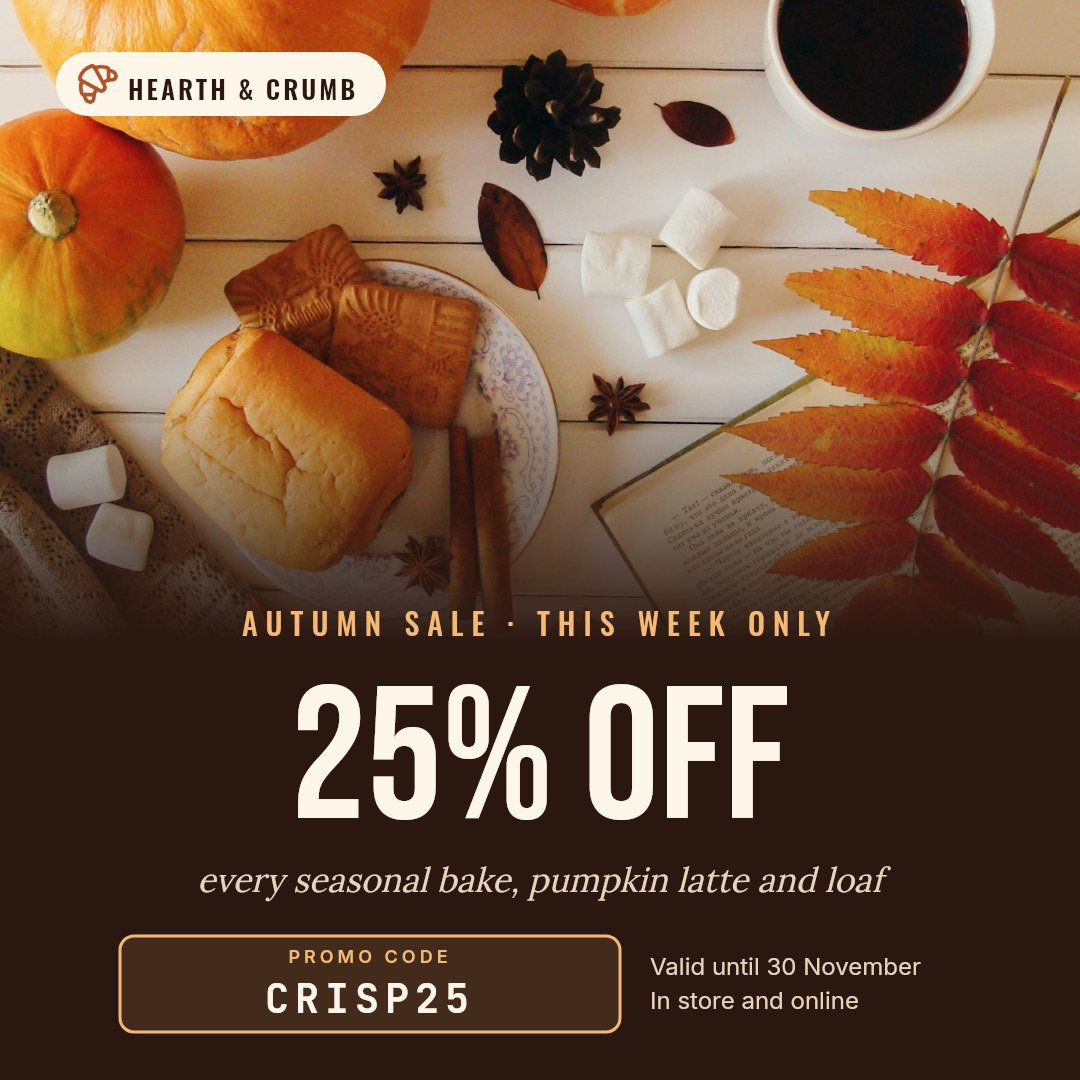
Designed by Claude from a one-paragraph brief. It searched for the stock photo itself, placed it with fit mode Cover, and bound the discount, code and expiry to variables.
Every prompt in this post starts with the same paragraph of working instructions. It tells the assistant to check the design, look at a preview and save a proper template rather than just hand back a picture:
Use the Zandovi tools. Read
get_design_referencetopicguidefirst and take the canvas size from topicpresets. Iterate withvalidate_designuntil it is valid, then save withcreate_templateinto the project “Zandovi examples” (create it if it doesn’t exist). Show me the preview, fix anything that overlaps or is hard to read, and give me the designer link. Bind every piece of text a user would change per copy to a variable with a sensible default.
Paste that, then the brief for the image you want. Assistants don’t produce the same design twice, so expect a result in the same spirit, not a pixel-identical copy.
Show the prompt for the coupon
Design an Instagram post (1080×1080) coupon for a small bakery called “Hearth & Crumb”. Find a warm autumn stock photo (pumpkins, pastries, coffee) with
search_stock_images, keep it withupload_image, and use it full width across the top 60% with fit mode Cover, fading into a dark espresso brown below. Brand pill top-left with a croissant icon. Below the photo: a small amber label “AUTUMN SALE · THIS WEEK ONLY”, a huge “25% OFF” in Bebas Neue, an italic Lora line “every seasonal bake, pumpkin latte and loaf”, a dashed promo-code box with code CRISP25 in a monospace font, and “Valid until 30 November / In store and online” beside it. Variables: discount, promo_code, expiry.
Then ask it to render the template with generate_image (JPEG, quality 88).
What the assistant can do through the connector:
- Browse and render your projects and templates, one image at a time or as a batch.
- Design new templates and edit existing ones, including undoing a bad change by restoring an earlier version.
- Find stock photos from Unsplash, Pexels and Pixabay, and use your own uploads from My Images.
- Start from the built-in library of 190 templates instead of a blank canvas.
It works with Claude.ai, Claude Desktop, ChatGPT (on plans with Developer mode), Claude Code, Cursor, VS Code and other MCP clients. They all connect to the same address:
https://mcp.zandovi.com/mcpYou sign in to Zandovi, choose which workspace to connect, and untick anything you’d rather the assistant didn’t do, such as creating or deleting templates. In Claude Code it’s one line:
claude mcp add --transport http zandovi https://mcp.zandovi.com/mcpStep-by-step guides: Claude.ai and Claude Desktop, ChatGPT, Claude Code and other coding agents. You can see and revoke every connection under Settings → Connected apps.
On cost: images rendered through the connector count against your plan’s API quota, the same pool an API key uses, on every plan. Checking a design is free, so assistants iterate there first and only render previews when the design is valid. Opening a saved template’s thumbnail is free too.
Here’s the same workflow on two more everyday jobs, an invitation with a personal greeting and an RSVP QR code, rendered twice with different guest names, and a blog header that doubles as a social sharing image:
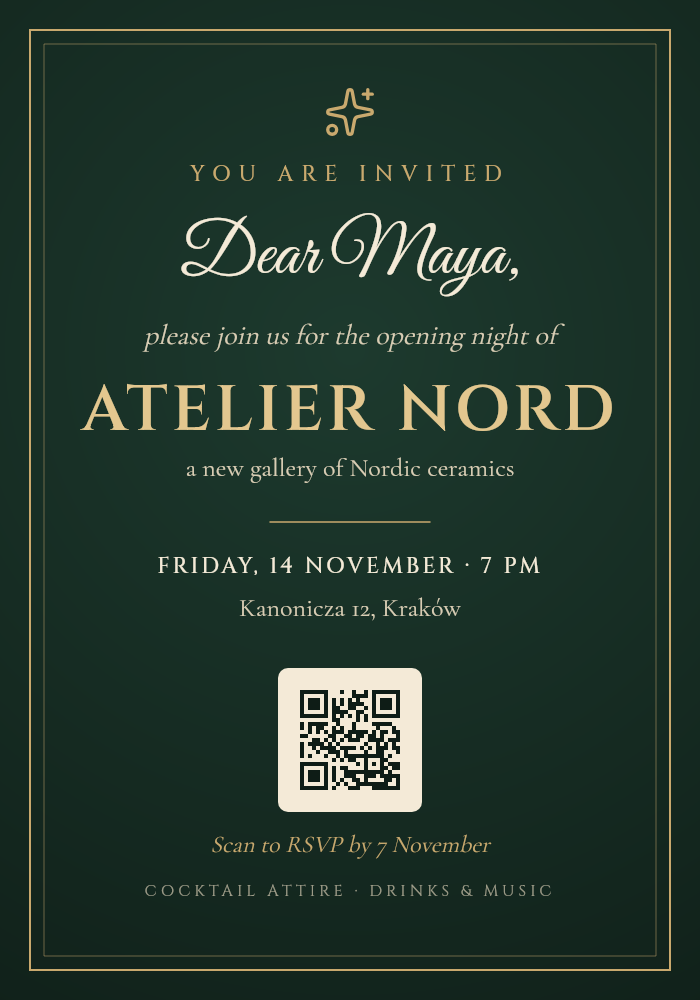
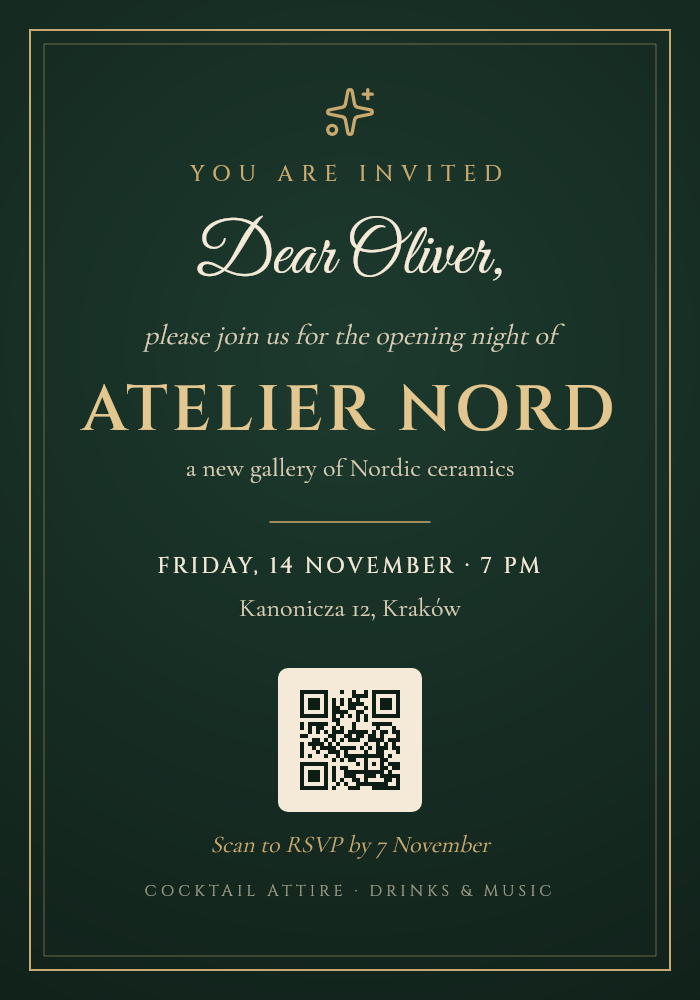
One template, one variable. For a whole guest list, the assistant submits a batch with a row per guest.
Show the prompt for the invitation
Design an elegant invitation (Invitation preset, 700×1000) for the opening night of “Atelier Nord”, a new gallery of Nordic ceramics in Kraków. Deep forest-green radial background, a thin double gold frame, a sparkles icon, Cinzel for the small caps lines and Great Vibes for a personal greeting “Dear Maya,” bound to a variable guest_name (shrink to fit long names). Then “please join us for the opening night of”, ATELIER NORD large in gold, the date “FRIDAY, 14 NOVEMBER · 7 PM” as variable event_date, the address, and an RSVP QR code on a cream rounded tile bound to variable rsvp_url, with “Scan to RSVP by 7 November” and a dress-code line underneath.
Then ask it to render the template twice: once with the defaults, once with
guest_name = "Dear Oliver,". For a full guest list, ask for submit_batch
with one row per guest.
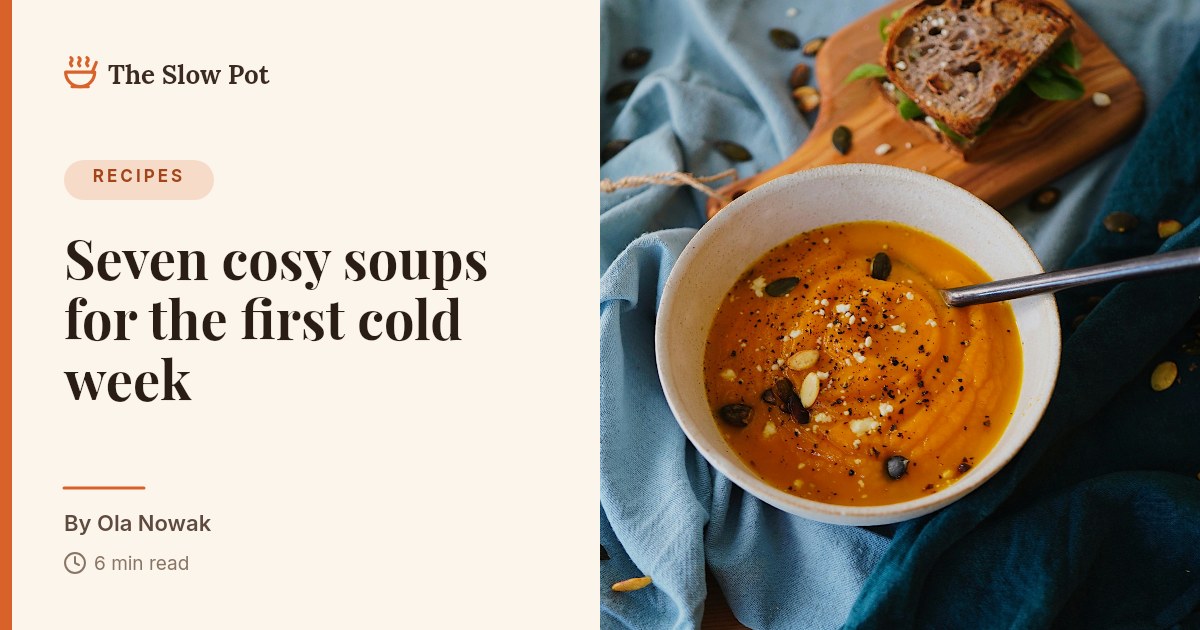
Title, author, read time and the photo are all variables, so the next article’s header is one render away.
Show the prompt for the blog header
Design a blog article header that also works as an Open Graph image (1200×630) for a food blog called “The Slow Pot”. Left half: cream panel with a thin orange accent bar on the left edge, a soup icon and the blog name, a “RECIPES” category pill, the title “Seven cosy soups for the first cold week” in Playfair Display (shrink to fit), a short orange rule, “By Ola Nowak” and a clock icon with “6 min read”. Right half: a pumpkin soup stock photo from
search_stock_images, kept withupload_image, as an image variable cover_photo with fit mode Cover. Variables: category, title, author, read_time, cover_photo.
Then ask it to render the template with generate_image (JPEG, quality 88).
Version history: every save is kept
Every save that changes a template now creates a version, and Zandovi keeps the 10 most recent ones. Click the clock icon next to the save status in the header (or View history in the “Template saved” message) to see them: when each was saved, and how. A version saved in the designer shows who saved it; one saved through an API key or a connected AI app says so.
Click a thumbnail to preview a version, then Restore to bring it back. Restoring doesn’t erase anything: the restored design is saved as a new version, so the one you replaced stays in the list too. If an assistant edits a template and you don’t like the result, this is how you get your design back. More in the docs.
Text in every language
Until now, a character our fonts didn’t cover could come out as an empty box, or look different on the canvas than in the rendered image. That’s fixed. Write in your own language and every national character renders correctly, in the editor and in the generated image.
That covers the languages most of our customers write in:
- German: ä ö ü ß, and the capital ẞ
- Polish: ą ć ę ł ń ó ś ź ż
- French: à â ç é è ê ë î ï ô û ù ÿ œ æ
- Czech and Slovak: ř ů ě ď ť ň ľ ĺ ŕ
- Spanish and Portuguese: ñ ã õ ç ¿ ¡
- Hungarian and Romanian: ő ű ș ț ă â
- Nordic and Icelandic: æ ø å þ ð
- Turkish: İ ı ş ğ
- Vietnamese, with its stacked accents: ế ệ ữ ờ
- Greek and Cyrillic, including the Ukrainian Ґ Є Ї
And beyond Europe: Chinese (Simplified and Traditional), Japanese, Korean, Thai, Hindi, Bengali, and Arabic and Hebrew, which read right to left as they should.
We rendered a sample of every one of them. This is the test sheet, straight from the renderer, with every line set in the same font:
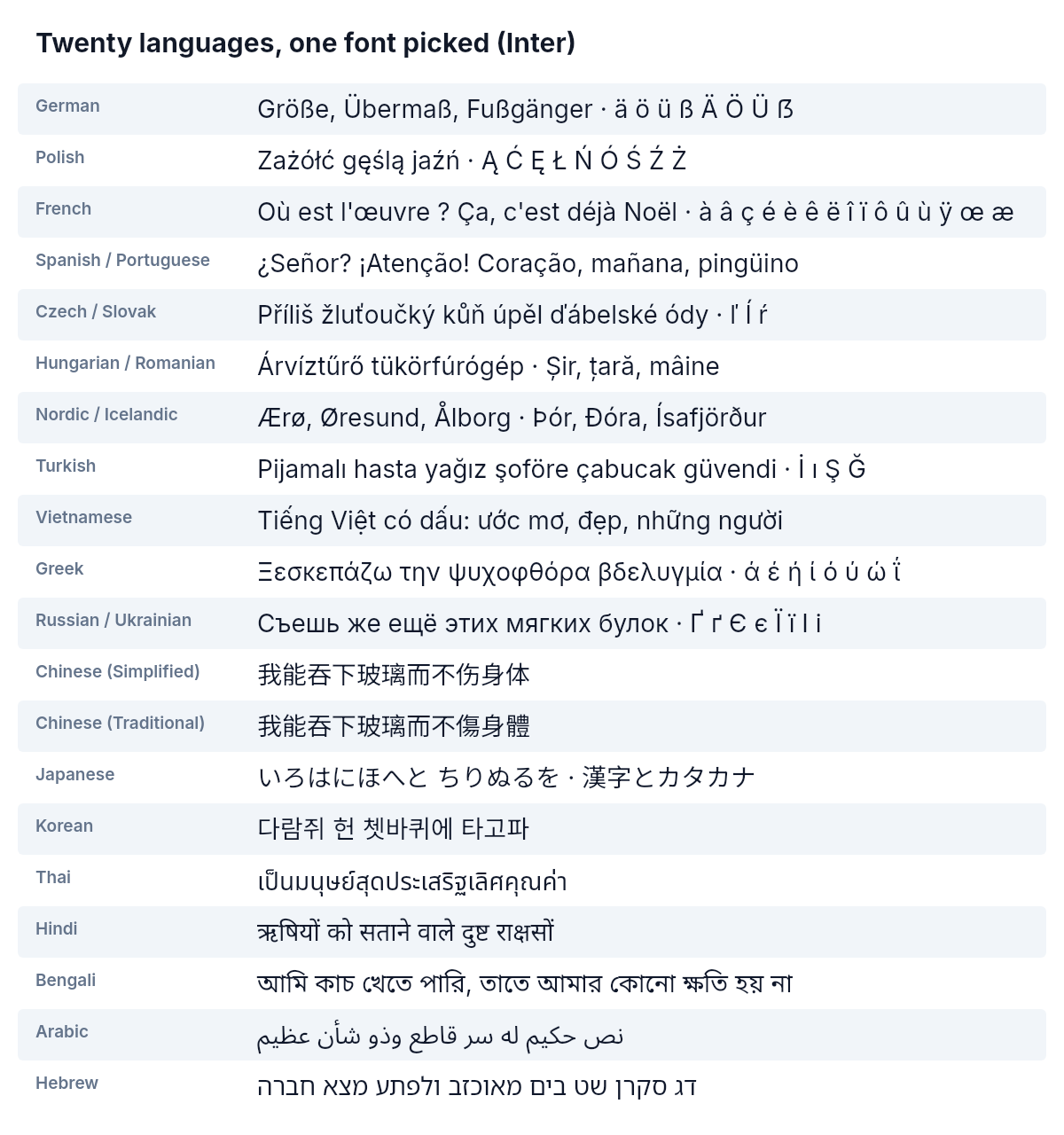
Inter draws every European line itself, Greek and Cyrillic included. The Asian, Arabic and Hebrew lines come from the fallback fonts described below. You never have to pick a different font per language.
Show the prompt for the test sheet
Make a plain test sheet (1200×1280, white background) proving national characters render. Title “Twenty languages, one font picked (Inter)”. Then 20 rows, alternating light-grey bands, each with a small grey language label on the left and a sample in Inter 28 px on the right (shrink to fit, one line): German “Größe, Übermaß, Fußgänger · ä ö ü ß Ä Ö Ü ẞ”, Polish “Zażółć gęślą jaźń · Ą Ć Ę Ł Ń Ó Ś Ź Ż”, French “Où est l’œuvre ? Ça, c’est déjà Noël · à â ç é è ê ë î ï ô û ù ÿ œ æ”, Spanish/Portuguese, Czech/Slovak “Příliš žluťoučký kůň úpěl ďábelské ódy”, Hungarian/Romanian “Árvíztűrő tükörfúrógép · Șir, țară, mâine”, Nordic/Icelandic, Turkish, Vietnamese, Greek “Ξεσκεπάζω την ψυχοφθόρα βδελυγμία”, Russian/Ukrainian, Chinese Simplified and Traditional, Japanese, Korean, Thai, Hindi, Bengali, Arabic and Hebrew. Use Inter for every row; don’t pick per-language fonts. Report which rows
validate_designflags with GLYPH_FALLBACK.
Then ask it to save the sheet and render it with generate_image (PNG).
Expect no GLYPH_FALLBACK on the European, Greek and Cyrillic rows; the Asian,
Arabic and Hebrew rows are drawn by the Noto fallback chain. To see the
decorative-font caveat below for yourself, ask for one line (“Zażółć gęślą
jaźń · Größe · Ça déjà · Ξεσκεπάζω”) in Tangerine, Permanent Marker or
Satisfy: the Polish letters come out in Noto Sans.
How it works: Zandovi ships 57 font families with their complete character sets: 49 of them cover the Latin-alphabet languages of Europe, 27 cover Cyrillic, 33 Vietnamese and 13 Greek. Behind them sits a fallback chain of Noto fonts for Chinese, Japanese, Korean, Arabic, Hebrew, Thai, Devanagari, Bengali, symbols and monochrome emoji. When the font you picked lacks a character, the next font in the chain draws it.
The editor and the renderer use the exact same fonts and the exact same chain, so what you see on the canvas is what the generated image contains, on any device. Your computer’s system fonts never sneak in.
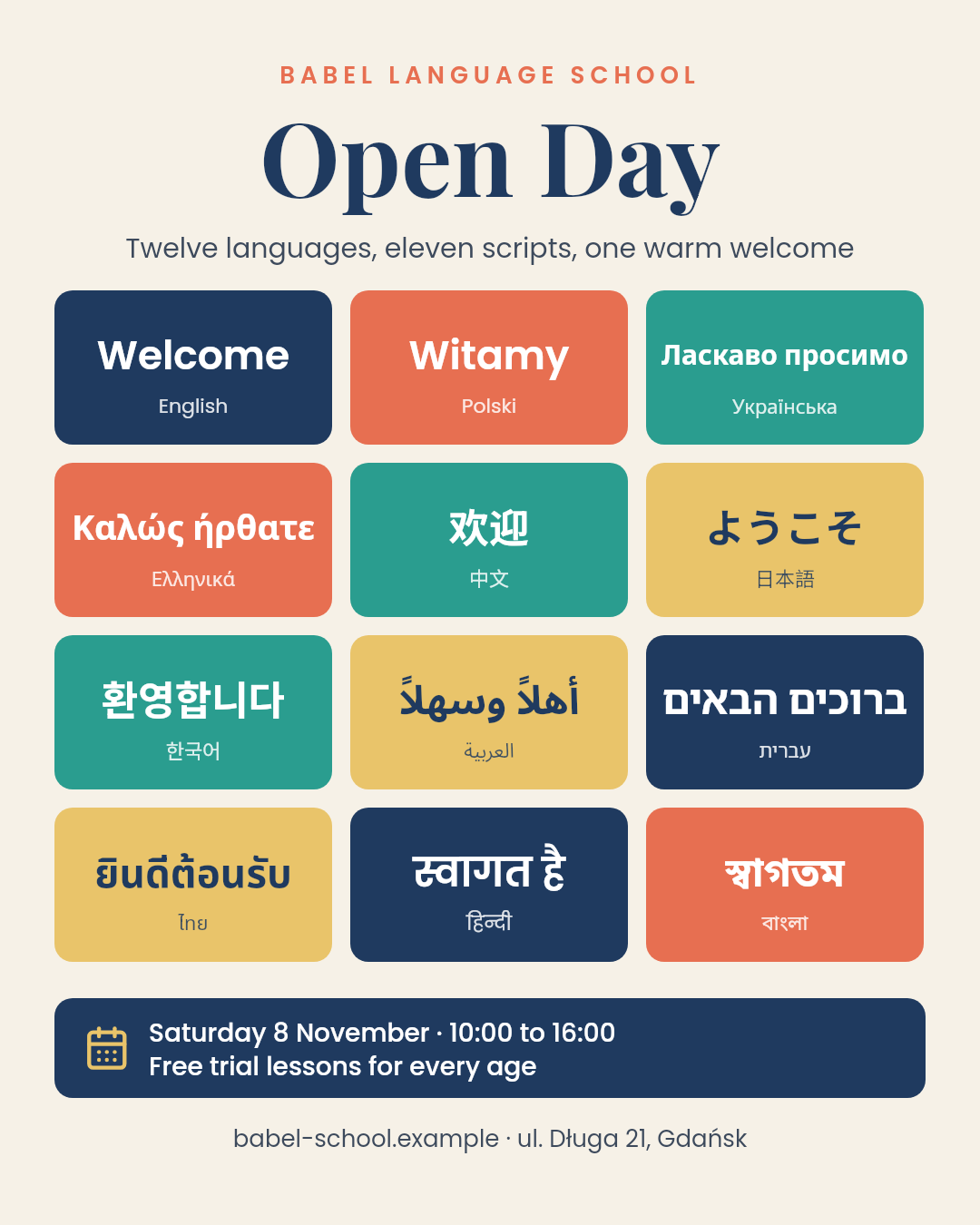
Every tile is set in Poppins. Poppins itself covers Latin and Devanagari; the fallback chain draws the other nine scripts, including right-to-left Arabic and Hebrew.
Show the prompt for the poster
Design an Instagram portrait poster (1080×1350) for “Babel Language School” announcing an Open Day. Cream background, a big Playfair Display “Open Day” title and the subtitle “Twelve languages, eleven scripts, one warm welcome”. Below, a 3×4 grid of rounded tiles in navy, coral, teal and mustard, each with “welcome” in one language and the language’s own name underneath: English, Polski, Українська, Ελληνικά, 中文, 日本語, 한국어, العربية, עברית, ไทย, हिन्दी, বাংলা. Set every tile in Poppins and let the fallback chain draw the scripts Poppins lacks (the GLYPH_FALLBACK warnings are expected). Footer: a navy bar with a calendar icon and “Saturday 8 November · 10:00 to 16:00 / Free trial lessons for every age” (variable event_details), and the address below.
Then ask it to render the template with generate_image (PNG), and check the
preview: Arabic and Hebrew should read right to left, and the Thai,
Devanagari and Bengali marks should sit correctly.
One thing to watch with decorative fonts. A few handwriting and display fonts were never drawn with the full Latin alphabet: Tangerine, Permanent Marker, Satisfy and Fredoka have no Polish or Czech letters, for example. The characters still render, but they come from the plain Noto Sans fallback, so a word like “gęślą” mixes two styles. Most fonts in the dropdown, including script fonts like Great Vibes, Lobster and Dancing Script, cover them natively. Greek is the same story: only 13 families have their own Greek letters, the rest borrow Noto Sans.
You don’t have to find this out after rendering. When you check a design, Zandovi lists exactly which characters will come from a fallback font, so you can pick a font that covers your language before you generate anything. For Japanese, Traditional Chinese or Korean, pick Noto Sans JP, Noto Sans TC or Noto Sans KR directly to get the right regional character forms. Which scripts each font covers is listed in Text and Typography.
A calmer editor
The editor’s layout changed, mostly to get out of your way:
- Switch projects from the header. The project name in the breadcrumb at
the top opens a menu with your recent projects and a search box. Press
⌘O(Ctrl+Oon Windows) to open it from anywhere. - A project overview tab. The pinned ▦ tab at the start of the tab bar shows every template in the project, with buttons to create a new one or start from the library.
- A Templates panel in the left rail lists the project’s templates without leaving the canvas.
- Every project and template has its own link. Bookmark it, or send it to a teammate in your workspace: it opens straight to that template.
- Your tabs are remembered per project. Switch to another project and back, and the templates you had open are still open.
- No more lost work. Leaving a project with unsaved changes now asks first, whether you use the logo, the project switcher, a link or the browser’s Back button.
A walkthrough is in Working with Multiple Templates.
Images: fit modes and saved stock photos
- Fit Mode for every image. Choose how a picture fills its box: Cover fills it and crops the overflow, Contain shows the whole picture, Fill stretches it. The canvas now shows exactly what the rendered image will contain. New images start on Cover.
- Save stock photos for later. Hover a stock photo and press the bookmark (or choose Save to My Images from its menu) to keep it without placing it on the canvas. It’s private to you until you share it with your team.
- Copy image reference. Every image in My Images has a Copy image
reference option that gives you a
zandovi://images/...address to use as an image value in a CSV row or an API call. - Image variables default to the image you placed. Leave an image variable’s Default URL empty and it falls back to the picture on the canvas.
See Images for the full reference.
Smaller improvements and fixes
- Shadows now scale with the element. A shadow on a group you resized, or on an image exported at 300 DPI, keeps its proportions instead of shrinking.
- Text that fits on the canvas now fits in the rendered image too. A few edge cases wrapped differently between the two.
- Photos with embedded content credentials (C2PA metadata, which some cameras and editing tools now add) render instead of failing.
- Transparent PNGs keep their transparency in My Images previews.
- Typed values in the Single Image dialog are sent to the renderer as entered.
- Icons are now stored with their drawing, so a saved design looks the same even after we update the icon set.
- Sign-in and invitation links in emails keep working when a company’s mail security scanner opens them before you do.
- The first render after your monthly quota resets is no longer refused.
- We removed Google Analytics from the app. The editor no longer sends usage events to Google.
Try it
Everything above is live for all plans now. If you use Claude or ChatGPT,
the connector is the quickest way to see it: add
https://mcp.zandovi.com/mcp, ask for something you’d normally design by
hand, and open the result in the editor. If something doesn’t work the way
this post says, tell us.
Photos in this post: pumpkins and pastries by Stacy, pumpkin soup by Irina, both on Unsplash.